
|
|


|
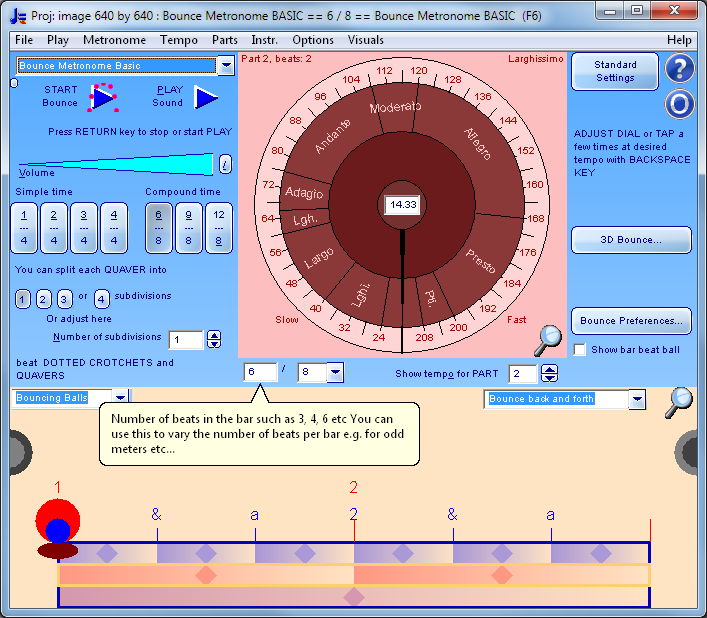
Screen Shot
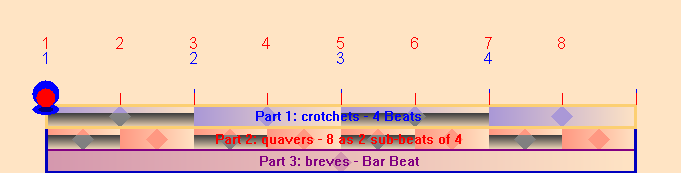
The software is easy to use. You choose your time signature. Then set the number of sub-beats for each beat, set the tempo and then click the Play button to hear the rhythm. You can accent and skip beats, and click and drag to adjust the timings of individual beats. It has carefully designed shortcuts to help you with your practise session so you can easily use the metronome without distractions from the music. So, as well as setting the tempo with the dial, you can use arrow keys to step up or down in tempo by a notch or 1 BPM at a time. You can or use the BACKSPACE key to tap at the desired tempo. To start or stop the metronome press the RETURN key. These are the two largest keys on the keyboard apart from the space bar, so easy to hit while practising a musical instrument. Then you can RIGHT CLICK on any beat to switch between accented, unaccented and quieter than usual. You can have any number of accent levels there as desired - the number of accent levels is set in the window. You can use the middle mouse button (scroll wheel used as a button for a scroll mouse), or Shift + Left click and drag to adjust the volumes. Here I've set the rhythm to 4/4 with 2 sub-beats. Then, with right clicks, I have set all the main beats to unaccented for a syncopated effect:
In this image the volume of the beat is shown by the amount of the beat filled in colour - so the beats with the shadows are the quiet ones. Here is what it sounds like: 4/4 with 2 sub-beats syncopated To do more advanced rhythms you need the Pro metronome - for auto accents, swing, polyrhythms made from time signatures, mixed meters and so on. But with the basic metronome, you can adjust the number of beats per measure individually for each part to create polyrhythms manually.
Skipped beatsYou can LEFT CLICK on any beat in a rhythm to - when you do this, the note for the previous beat continues through the skipped beat.
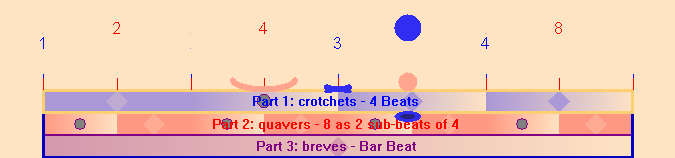
You can set up a rhythm like this very quickly, just left click on all the beats in the rhythm you want to skip. The dark gray ovals show the skipped beats. So in the first (blue) part with four beats to the bar, the second of the four beats is skipped. In the second (red) part which plays the subdivisions, all of the subdivisions which play on the beat are skipped to give a syncopated rhythm. . Here is what it sounds like: 4/4 with 2 sub-beats syncopated with skipped beats
AdjustmentsYou can also optionally left click on the lines between the beats to adjust the timing of individual beats. If you want to do this you need to switch on the option in the window. You can set the instrument to play for each of the parts in the rhythm using the window.
PartsWith the option switched on you get controls you can use to adjust the number of parts, the number of beats for each part, and the instrument for each part. You can also hide the bouncing ball for a part and silence or play a part.
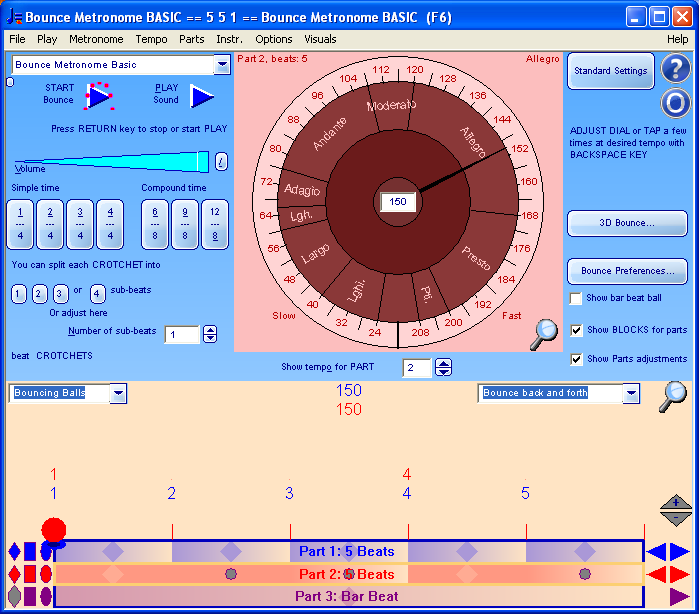
Here I've used those controls to set up three parts. The first two parts play five beats to the bar and the last part plays the bar beat. In the second part I've skipped the second, third and fifth beat. This gives you 5/4 with the fourth beat in the bar emphasized. Here is what it sounds like: 5/4 with fourth beat emphasized. You can make other additive rhythms in the same way. If you want to work with additive rhythms extensively however, you will probably want to use the Additive metronome available in Bounce Metronome Pro. You can also make polyrhythms too. Again if you work with Polyrhythms extensively you will probably want to use the Polyrhythms Metronome in Bounce Metronome Pro.
AudioThe bounces are automatically synchronised with the sounds - this is because the animation is created in real time, it's not just a case of playing a pre-recorded animation. So, if your computer is slower than usual, then fewer frames are shown, but each frame still shows the position of the bouncing ball at the exact time reached, so the bouncing ball is always in sync with the sound. You may find the bouncing ball anticipates the tap - it always bounces a moment or two before the tap sounds. That means that your soundcard or synth has some latency - normally every note played is delayed by a fixed amount. This is normal on a Windows computer - the amount of latency can vary between just a millisecond or so, up to 100 or 200 ms - a fifth of a second, on some machines. If this happens go to the window and you will find an option . Experiment with different numbers for the delay until you get the sound in sync with the visuals.
MoreThe basic metronome is designed mainly for use with the simpler time signatures. However, it is quite versatile, since it can also play syncopated rhythms, and rhythms with any number of beats to the bar. With skipped beats or accents, you can also set it up to play additive rhythms such as 2+3/4 and polyrhythms such as 3/4 and 4/4 played simultaneously. If you want a conventional type metronome with a steady tick, this may be all you need. To explore swing, or to add a lilt to a rhythm, or wish to tap out a rhythm using the space bar - or if you need to use additive rhythms and polyrhythms extensively, or for the pitched rhythms, harmonic metronome, fractal melodies and the rhythmicon, you need the Pro metronome. As you use the program the help window will show you help for every control so that you can see what options are available with tips, extra information and so on. The screen shots here use UK note names such as crotchets, quavers etc. When Bounce Metronome is installed on a US computer then the note names will be shown as quarter notes, eighth notes and so on. Get your free fully featured 30 day Test drive :
BlindFor blind users and those who don't work visually very much, there is an alternative interface designed for you -you can play all the same rhythms as a sighted user. For more about this, see the Blind Musician's Metronome page.
Or download your 30 day Free Test Drive - including your free taster time signature metronome which is yours to keep whether you buy or not
More Videos:Watch Gravity Bounce |



|
|
|
♥ |
| Disclaimer |
| Products - Music - Bounce Metronome |  |
| free of spyware etc |  |